Press, drag, done
Hit a shortcut and the selection overlay is there almost before you let go of the keys. A native capture engine keeps it quick, and Capto stays light while it waits in the tray.
- Near-instant overlay from any app
- Area, window, full screen or a scrolling page
- A magnifier for pixel-perfect edges
- Quick Access keeps your latest shots at hand
When a screenshot is not enough
MP4 and GIFWalk someone through a flow, show a bug as it happens, or loop a quick GIF. Record an area, a window or the whole screen, with sound and your camera if you want them.
Explore recordingAny area, window or screen
Draw the region, pick a window or take the whole display, then press record.

Your camera, in a bubble
Circle, square, landscape or portrait. Mirrored if you like.
Clicks people can follow
A soft ring marks every click, so viewers never lose their place.
Keys on screen
Show the shortcuts you press while you record a tutorial.
Voice and system sound
Record your microphone, your apps, or both, each with its own level.
Trim, then export
Cut the start and the end, then save an MP4 or a GIF that is ready to share.
Say it with a picture
Arrows, shapes, numbered steps and highlights explain faster than a paragraph. Pixelate or redact what should stay private, then crop and frame the result.
Meet the editorArrows and lines
Point straight at what matters.
Shapes
Box it in or circle it, filled or outlined.
Text
Add a label, a note or a quick verdict.
Numbered steps
Counters number themselves as you click.
Highlighter
Mark the line people should read first.
Pixelate and blur
Hide faces, names and numbers in a stroke.
Redact sensitive text
Capto spots emails, keys and card numbers for you to cover.
Crop
Trim to the part that tells the story.
Background and styles
Frame a capture on a backdrop with padding and shadow.
Every capture, easy to find again
LibraryTurn on History and your screenshots and recordings collect in the Library. Search them by the words inside, star the keepers and sort them into collections.
Explore the LibrarySearch by the text inside
Capto reads your captures while your PC is idle, so typing a word finds the screenshot that contains it.
Favorites and collections
Star what matters and group captures by project.
Recently deleted
Changed your mind? Bring a capture back from the trash.
Quick Access
New shots wait in a corner to copy, save, drag or annotate.
Pin to screen
Float a capture above every window as a reference.
Share a link from your own storage
Upload to Cloudflare R2, Amazon S3, Tencent COS or Aliyun OSS and paste the link. The files stay in your account.
Try it before you install
LiveThese are Capto’s own editor, trim and text panels, built from the app’s source and running right here. Nothing you do is uploaded.
 CaptoLive demo

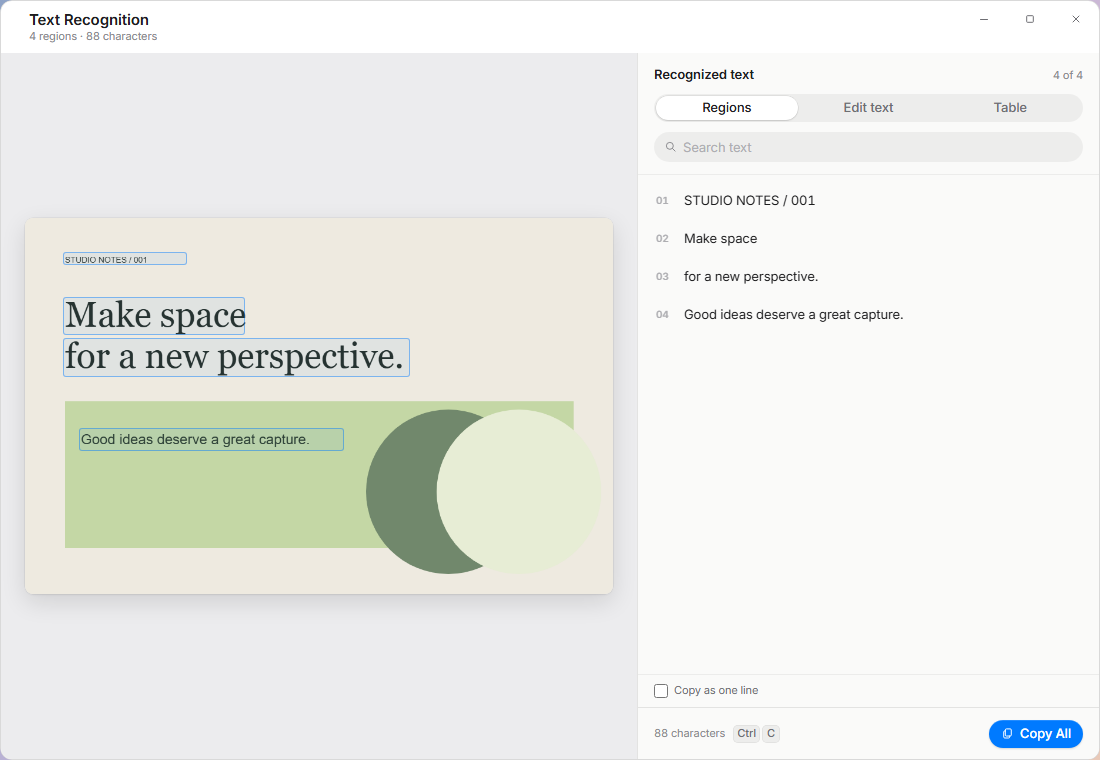
Copy text from anything you can see
Screenshots, slides, paused videos, apps that will not let you select. Capto reads the words on your PC and puts them on the clipboard.
- Recognition runs on your device
- Search and edit before you copy
- Keep line breaks or copy as one line
Long pages, one image
Select the part that scrolls and Capto does the scrolling for you, stitching everything into one tall screenshot.
- Web pages, documents and chat threads
- Stitched on your PC in moments
- Alt + Shift + 7 from any app
Read it in your language
Translate text you capture or select with the provider you choose, from DeepL and Google Cloud to OpenAI, Gemini or a local Ollama model.
- 26 provider presets built in
- Only the text you pick is sent
- Alt + Shift + T to capture and translate
Built for the way Windows works
A native capture engine
Capture runs through a small native helper, so the overlay appears almost instantly and Capto stays light while it waits.
Shortcuts your way
Thirteen defaults on Alt + Shift. Change any of them.
Capture workflows
Save a capture with its own folder, format and size, and run it in one step.
Self-timer
Give yourself a few seconds to open that menu first.
Magnifier
Zoom in on the pixels while you select, for a clean edge.
Signed updates, no fuss
Capto checks a signed release feed and installs updates when you restart. It installs per user, without admin rights.
Privacy
Local by default
Captures, recordings, editing, text recognition and your Library stay on your PC. No Capto account, no product telemetry.
How Capto handles your dataOnline only when you ask
Translation and cloud sharing use services you set up yourself, and only run when you invoke them.
Read about optional servicesStay on the keyboard
A shortcut for everything
- AltShift1All-in-One
Every capture mode, recording and text tool in one bar.
- AltShift2Area capture
Drag around exactly the part you need.
- AltShift3Fullscreen
Take the whole display in one go.
- AltShift4Window capture
Click any window for a clean, framed shot.
- AltShift5Copy text
Read the words in an area and copy them.
- AltShift6Record
Start a screen recording with sound and camera.
- AltShift7Scrolling capture
Turn a long page into one tall image.
- AltShift9Area and annotate
Capture straight into the editor.
- AltShift0Library
Open everything you have captured.
- AltShiftTCapture & translate
Read text on screen and translate it.
Questions, answered
Setting Capto up for the first time?
See the installation help or the privacy details.
Do I need an account?
No. Capturing, recording, editing and text recognition all work without a Capto account. If you connect a translation provider, that provider may ask for its own account or API key.
Does Capto upload my screenshots?
Not unless you ask it to. Captures stay on your PC. Cloud share is off until you set it up, and then uploads only the capture you share, to storage you own. Translation sends only the text you choose to translate.
Which versions of Windows are supported?
Capto runs on 64-bit Windows 10 and Windows 11. There is no macOS or Linux version right now.
Can I change the keyboard shortcuts?
Yes. Go to Settings, then Shortcuts, to change any capture action. You can also give the All-in-One bar a combination of your own.
Where do my captures go?
Wherever you choose: the clipboard, a folder, or both. With History turned on, saved screenshots and recordings also appear in the Library, for as long as you decide. Text recognition and translation return text directly.
How do updates work?
Capto checks its signed update feed on its own. The installer downloads when you choose to update, and the new version is in place after a restart.